Alerts
Document Metadata
Category: Customer Analytics & Monitoring / Alerts & Thresholds
Audience: Administrators, Engineers, Support Team
Difficulty: Intermediate
Time Required: Approximately 30–45 minutes
Prerequisites: Active ConnexCS account with access to the Customer module and ability to define alert thresholds (email recipients, metrics)
Related Topics: Customer – Stats, Customer – Route Stats
Next Steps: After setting up alerts, review the Global Alerts overview and integrate push notifications via Pushover Notifications
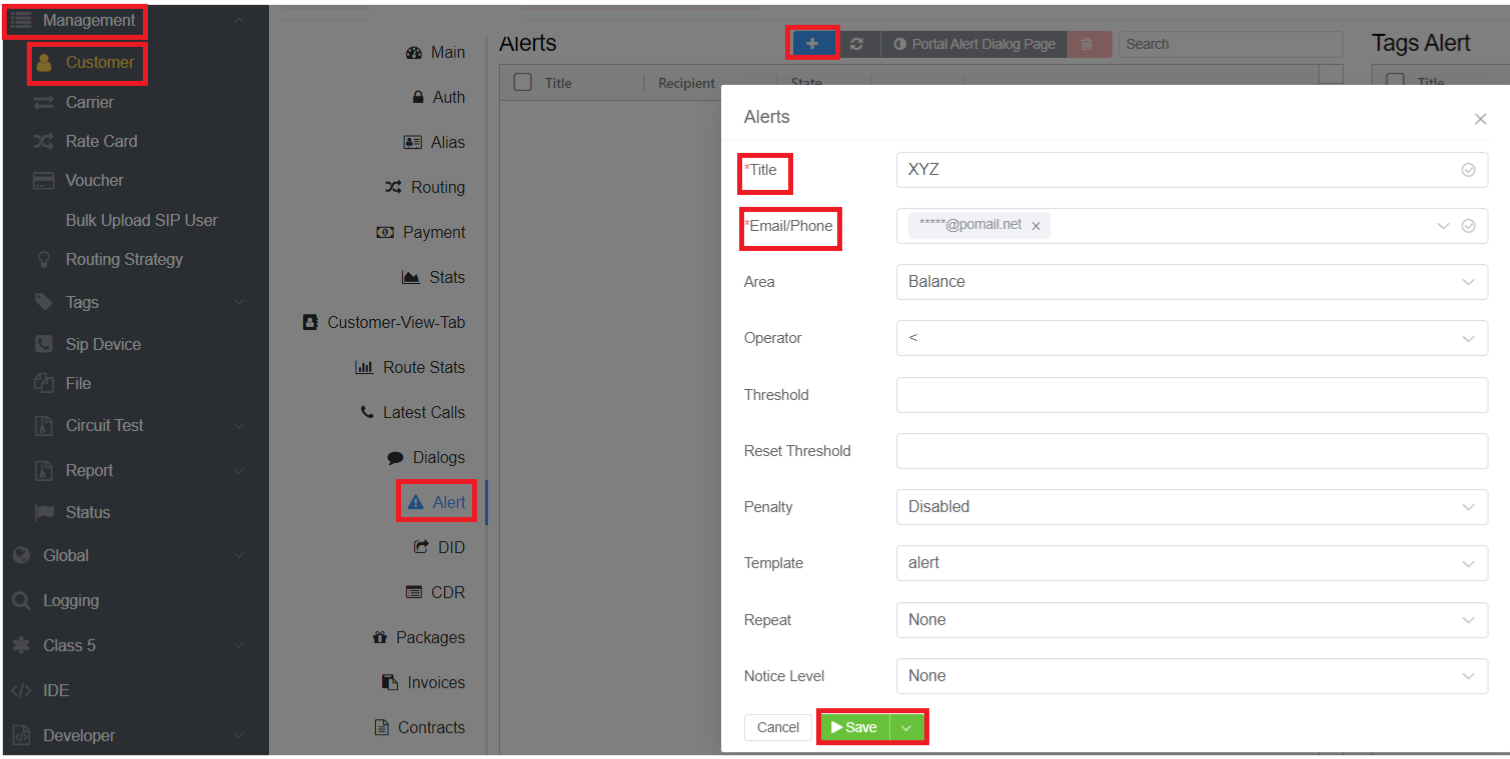
Management Customer [Customer Name] Alerts
Create Alerts to contact customers when specific occurrences occur.
Alerts are a useful way to track transaction information, mainly when your customer lists fill up.
It helps automate monitoring and notifications based on key performance metrics. These alerts are triggered when predefined thresholds are met, ensuring proactive management.
Alerts are primarily communicated via email to designated recipients.
Example
The mechanism used to send Alerts when a customer's balance gets below a certain threshold.
graph TD
A[Monitor Customer Data] --> B{Check Balance Threshold}
B -- Below Threshold --> C[Balance Below Threshold] --> D[Send Balance Alert]
B -- Above Threshold --> E{No Alerts Needed}

%% Properly formatted notes
B:::note -->|Compare current balance with threshold| B
E:::note -->|Compare current usage with specified limit| B
D:::note -->|Notify customer via email/SMS/etc.| D

%% Styling nodes
classDef alert fill:#,stroke:#333,stroke-width:2px;
classDef note fill:#ffffcc,stroke:#333,stroke-width:1px,font-style:italic;

class A,B,C,D,E,F,G,H alert;
Assigning the recipient's e-mail address to the relevant department heads in a business pipeline automates a procedure that would require manual attention.
Since the threshold represents the most numeric traits related to VoIP, it can form the foundation for efficient service operations.
Global Alerts
You can also configure Alerts for specific Customers or Carriers under Global Alerts, which displays all configured Alerts.
Key Features
- Custom Alert Triggers: Alerts can be configured based on specific thresholds.
- Automated Email Notifications: Notifications are sent to specified recipients.
- Reset Thresholds: Alerts reset once conditions return to normal.
- Configurable Sample Periods: ASR, ACD, PDD, and other metrics can be monitored over custom time frames.
- Custom Templates: Users can create their own alert templates.
- ScriptForge Integration: Allows advanced, script-based monitoring and custom alerts.
Create an Alert
To add a customized alert, click .
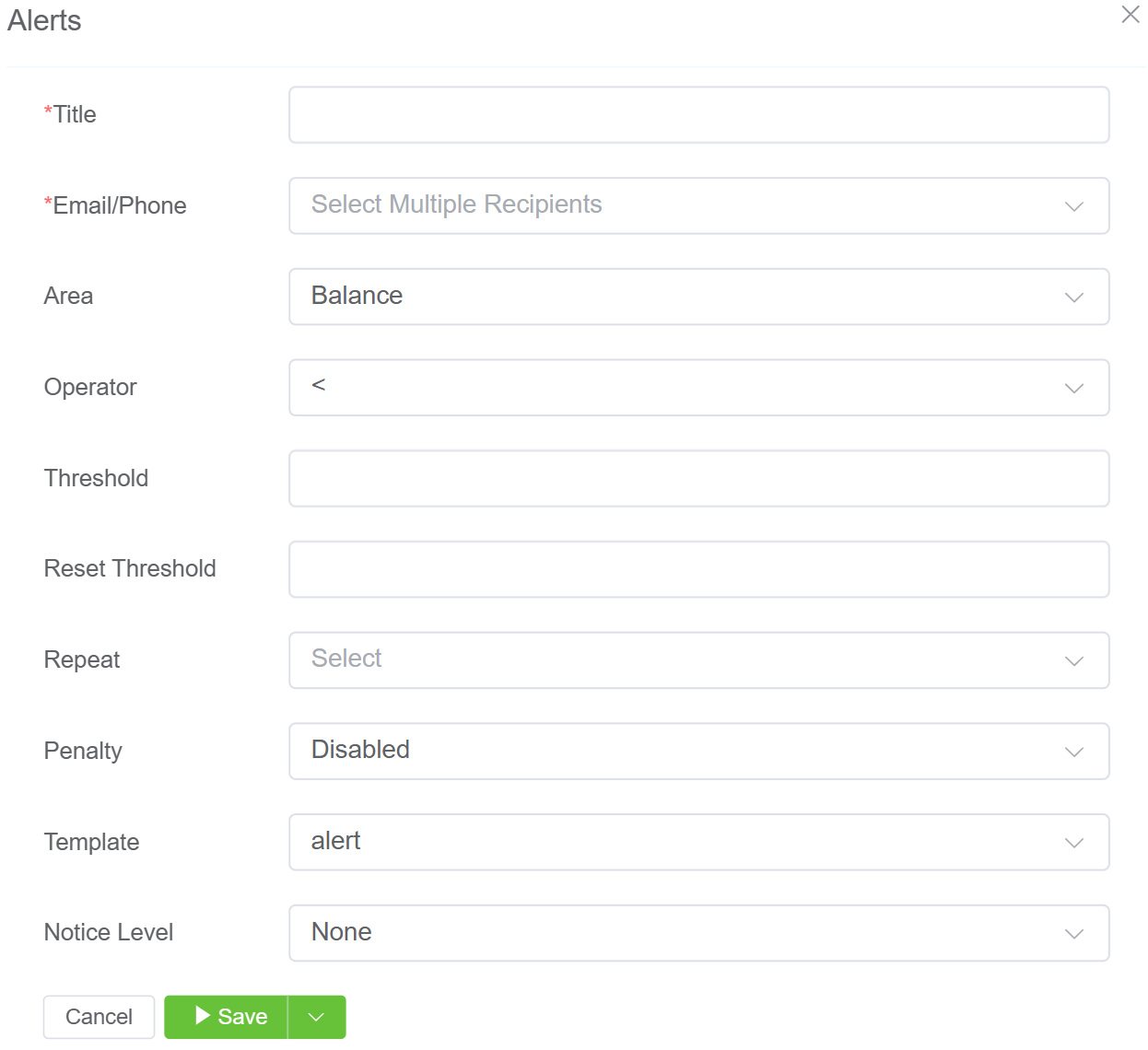
Field details:
- Company: (Found only under Global Alerts) Select the Customer or Carrier that the Alert will track.
- Title: Must be unique as it's the alert's placeholder in the database.
- Email/Phone: Specify where to send the alert when triggered.
- Area: Monitoring the aspect of business. For example, a low balance alert for a given group of customers would fall under the "Balance" area.
- Operator: The operator tests whether a numeric value is greater than, less than, or equal to the value defined in the Threshold below. The Attached business values will determine the amount of weight placed on each alert. For example, "=" means "is equal to."
- Threshold: This is the triggering value in the alert sequence.
How your system responds to the value depends on the operator used, but the alert itself will trigger whenever the governing conditions are true. - Reset Threshold: A numeric value that works with the threshold to prevent alerts from triggering continuously and accidentally, which is necessary for values that fluctuate.
The purpose is two-fold: to allow the threshold function to have a range type instead of a concrete number; and to provide the alert system with automation when a system returns to usual on its own. - Sample Period: (available only for certain "Areas") Sample the data over a period of time and use that against the threshold to determine when to trigger the alert.
- Penalty: The alert will Disable the Customer or Carrier for the selected duration of time.
- Template: This will populate the sent Alert. (See Setup Config Templates for details.)
- Repeat: How often to resend the Alert.
- Notice Level: You can assign alert levels like Warning or Error for classifying and communicating the severity of events or conditions that require attention or action.
Click Save, and it creates a new alert.
Alert List
The Global Alerts page displays Alerts in a table with the following fields:
| Column | Description |
|---|---|
| Title | Name or title of the Alert |
| Company | Company associated with the Alert |
| Recipient | Recipient configured to receive the Alert |
| State | Current state of the Alert, such as Ready, Sent, or Paused. |
| Table Change | Indicates the configured table-change information associated with the Alert. |
Alert State
The State column indicates the current status of each Alert:
- Ready — The Alert is ready for use.
- Sent — The Alert has been sent.
- Paused — The Alert is currently paused.
Managing Alerts
The Global Alerts page provides controls for managing Alerts, including:
- Search — Search for a specific Alert.
- Add (+) — Create a new Alert.
- Refresh — Refresh the Alert list.
- Delete — Delete selected Alerts.
- Columns — Configure which columns are displayed.
- Filters — Filter the Alert list.
- Custom Settings — Adjust the display settings.
To work with multiple Alerts, select the required Alerts using the checkboxes in the first column.
Tags Alert
Overview
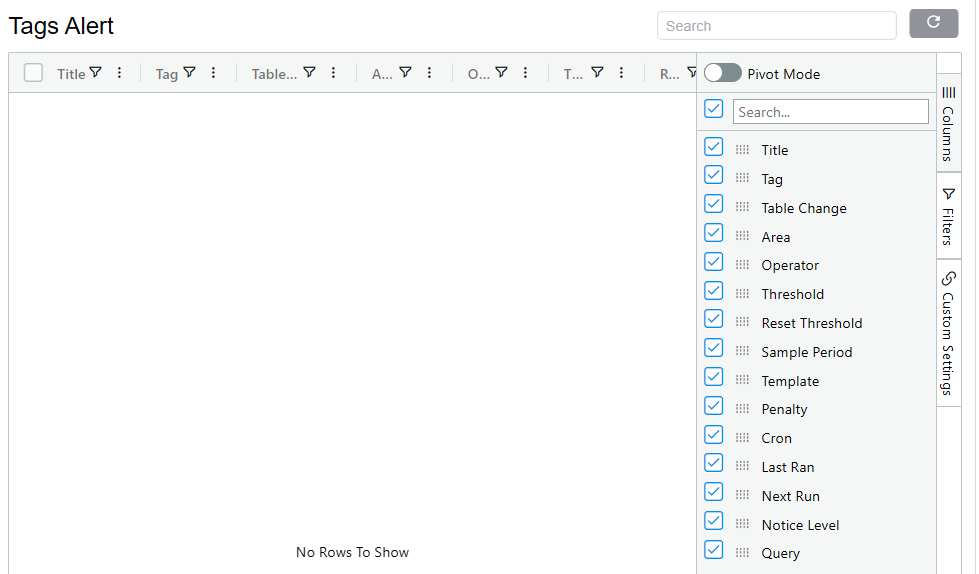
The Tags Alert section provides a view of Alerts configured around Tags. It displays configured Tag Alerts in a table and provides tools to search, filter, customize, and analyze the displayed Alert data.
Tags Alert List (Column)
The Tags Alert table provides the following fields:
| Field | Description |
|---|---|
| Title | Name or title used to identify the Tag Alert |
| Tag | The Tag associated with the Alert |
| Table Change | Specifies the table-change event or condition associated with the Alert |
| Area | Defines the area or scope to which the Alert condition applies |
| Operator | Defines how the configured value is evaluated against the threshold, such as whether a value is equal to, greater than, or less than the configured threshold. |
| Threshold | The value that must be reached or exceeded for the Alert condition to be triggered, according to the configured operator |
| Reset Threshold | The value used to determine when the Alert condition should be reset after it has been triggered |
| Sample Period | Defines the period over which data is evaluated for the Alert condition |
| Template | The notification template associated with the Alert |
| Penalty | Defines the penalty associated with the Alert configuration when its condition is met |
| Cron | Defines the scheduled execution pattern for the Alert using a Cron schedule |
| Last Run | Shows when the Alert was most recently executed |
| Next Run | Shows when the Alert is scheduled to run next |
| Notice Level | Defines the notice or notification level associated with the Alert |
| Query | The query used by the Alert to retrieve or evaluate the data required for its condition |
Note
The exact behavior of fields such as Table Change, Area, Penalty, Notice Level, and Query depends on the Tag Alert configuration. The field names alone do not provide enough information to define their underlying processing logic more precisely.
Searching
Use the Search field at the top of the page to quickly locate a specific Tag Alert.
You can also use the search field within the Columns panel to find a particular field when configuring the table.
Columns
The Columns panel allows you to control which fields are displayed in the Tags Alert table.
Use the checkboxes to show or hide columns from the table.
The drag handles beside the column names can be used to arrange the column order.
Pivot Mode
The Pivot Mode option allows the displayed Tag Alert data to be organized in a pivot-style view.
Enable Pivot Mode when you need to analyze the available Tag Alert data by grouping or summarizing it rather than viewing it only as a standard table.
Filters
The Filters panel can be used to narrow the Tag Alert records displayed in the table.
Filters can be applied to the available fields to focus the results on specific Alert configurations or values.
For example, filtering can be useful when reviewing Alerts associated with a particular:
- Tag
- Area
- Operator
- Threshold
- Notice Level
- Alert configuration
Custom Settings
The Custom Settings panel allows you to adjust the appearance of the Alert table.
-
Theme: The Theme setting controls the visual appearance of the Alert table.
-
Row Height: The Row Height setting controls the amount of vertical space used for each Alert row.
- Lower row height — Displays more Alerts within the available screen space.
- Higher row height — Provides more spacing between Alerts for easier reading.
These settings change how the Alert list is displayed without changing the underlying Alert configuration or data.
Refreshing the Report
Click the Refresh button at the top of the page to reload the Tag Alert data.
This is useful after changes have been made or when you want to retrieve the latest Alert information.
Use Cases
The Tags Alert view can be used to:
- Review configured Tag Alerts.
- Search for a specific Alert.
- Review Tag Alert conditions and thresholds.
- Check when an Alert last ran and when it is scheduled to run next.
- Review Alert templates, queries, and notice levels.
- Select the columns most relevant to your investigation.
- Filter the Alert list to focus on specific configurations.
- Use Pivot Mode for further analysis of the displayed Alert data.
More Information
For more information about Tag Alerts, including configuration details and usage examples, see the Tag Alerts page
Sample Alerts
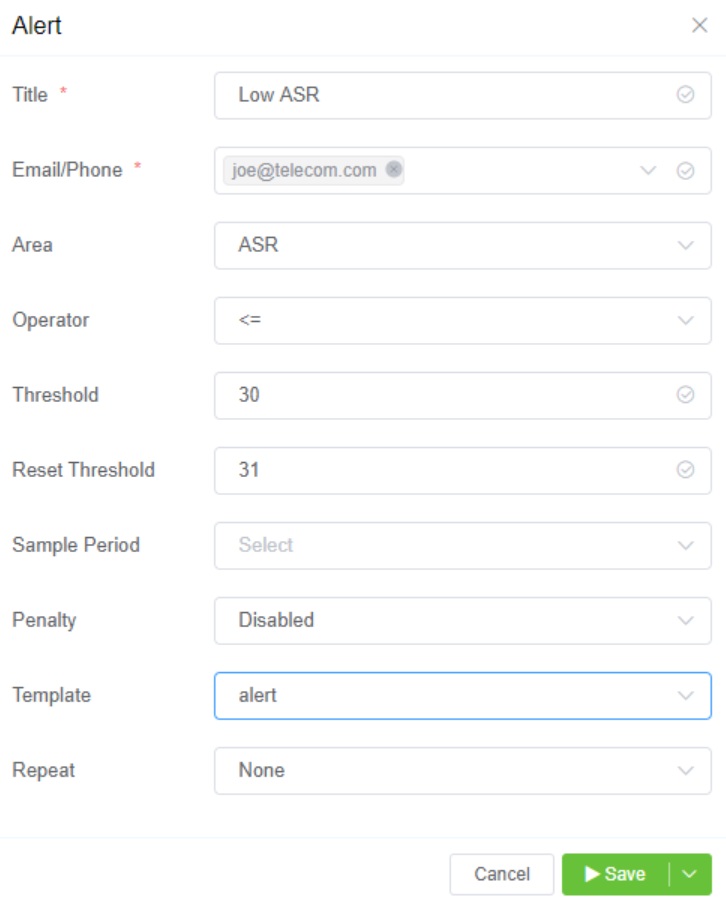
"Low ASR Warning" (Low ASR may show issues with call completion).
This will email the customer with a custom template, whenever their ASR (Answer Seizure Ratio) reaches 30% or below.
If it goes above 31%, then the Alert is reset.
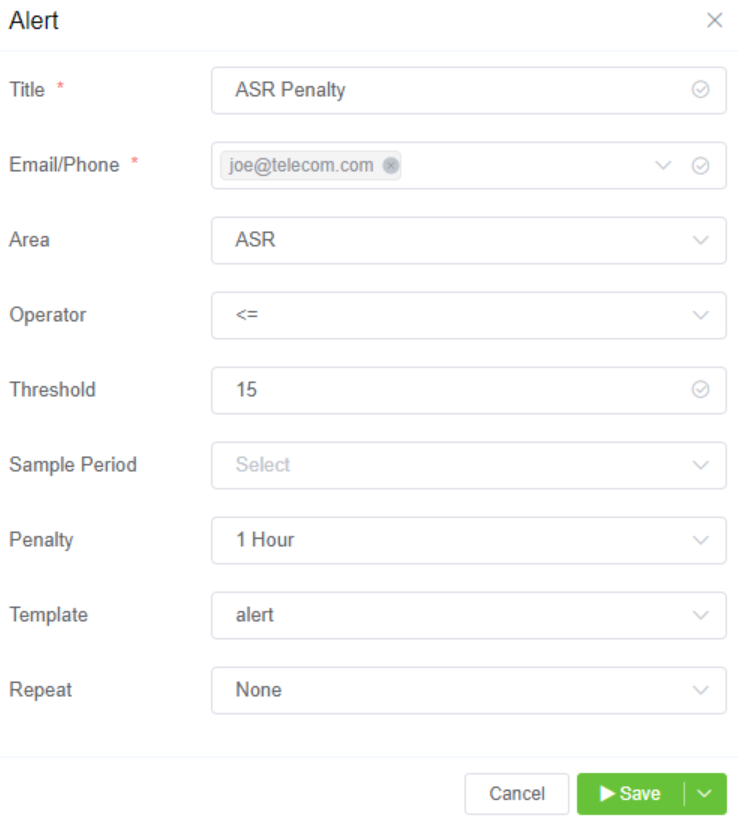
ASR Penalty Similarly, you could set the ASR Threshold to 15, and enable a penalty of 1 hour. This would disable the customer for 1 hour whenever their completed calls drop below 15% of total calls.
How it works
- Trigger Condition: Activated when the Answer-Seizure Ratio (ASR) falls below 30%.
- Notification: Sends an email alert stating that ASR has dropped below the threshold.
- Reset Condition: The alert resets when ASR rises above 31%.
- Sample Period: Users can configure measurement intervals (e.g., last 5 minutes, last 30 minutes).
graph TD
A[Monitor ASR] --> B{ASR < 30%?}
B -- Yes --> C[Trigger ASR Alert] --> D[Send Email Notification]
B -- No --> E[No Alert]

C --> F{ASR >= 31%?}
F -- Yes --> G[Reset Alert]
F -- No --> H[Continue Monitoring]

%% Notes
B:::note -->|Activated when ASR drops below 30%| B
D:::note -->|Email notification sent to user| D
F:::note -->|Alert resets when ASR rises above 31%| F

%% Styling nodes
classDef alert fill:#,stroke:#333,stroke-width:2px;
classDef note fill:#ffffcc,stroke:#333,stroke-width:1px,font-style:italic;

class A,B,C,D,E,F,G,H alert;
What's the purpose?
- Prevents junk traffic that affects carrier profitability.
- Protects the network from non-connecting calls.
- Automatically re-enables calling after the penalty duration.
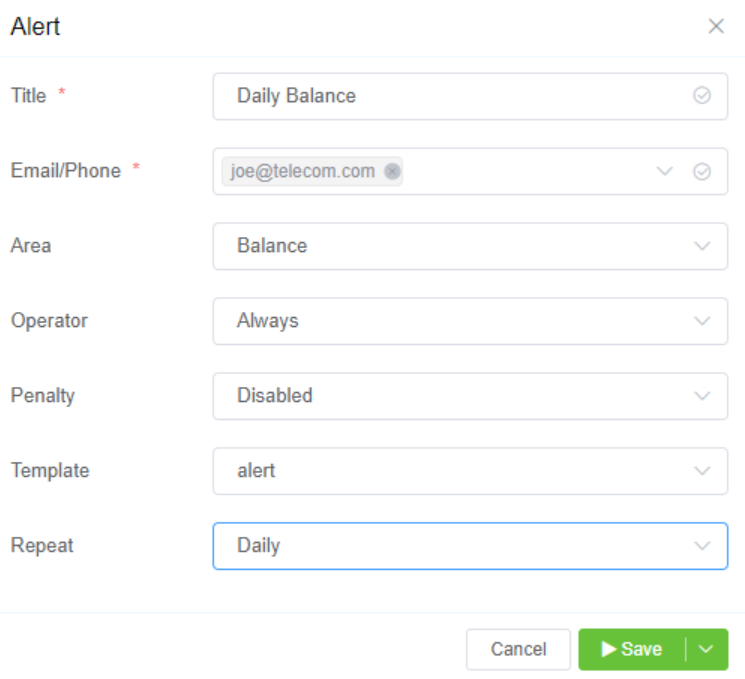
Daily Balance For customers who run close to their balance on a regular basis.
Can be scheduled to provide daily updates on key metrics:
- Balance alerts
- ASR alerts
- ACD alerts
- PDD alerts
- ScriptForge alerts
Script Forge Alerts When you set the Area to "Script Forge," it will bypass all the other Alerts fields and allow you to select an existing Script Forge script.
For example, a script could check locked CLIs by a carrier and then send a regular report with that information.
- Advanced alerting using JavaScript.
- Allows holistic monitoring, such as tracking CLI-based call blocks.
Click here for details on Script Forge.
Test and Alert
You can test the created alert under a specific customer.
You can receive alert messages in e-mails or via SMS.
Pushover Notifications
Pushover is an easy-to-use and reliable platform that allows you to deliver push alerts to your desktop computer, smartwatch, and mobile devices.
Even when you're not actively using your devices, it enables you to receive notifications and updates from a variety of applications and websites.
Well it’s good news..!!! You can integrate Pushover notifications with the ConnexCS system.
Steps for Integration
- Create an account on https://pushover.net/ and login to your account.
- Install the Pushover app on your mobile devices and optionally the desktop app on your computer.
- Click on Pushover on the top left.

4.Select the Device, Sound, and Priority of the notification.
5.Title and URL are optional fields. But do fill-out the Message field.
6.Click on Send Notification.
7.You will see the following message on the top Your message has been queued for delivery.
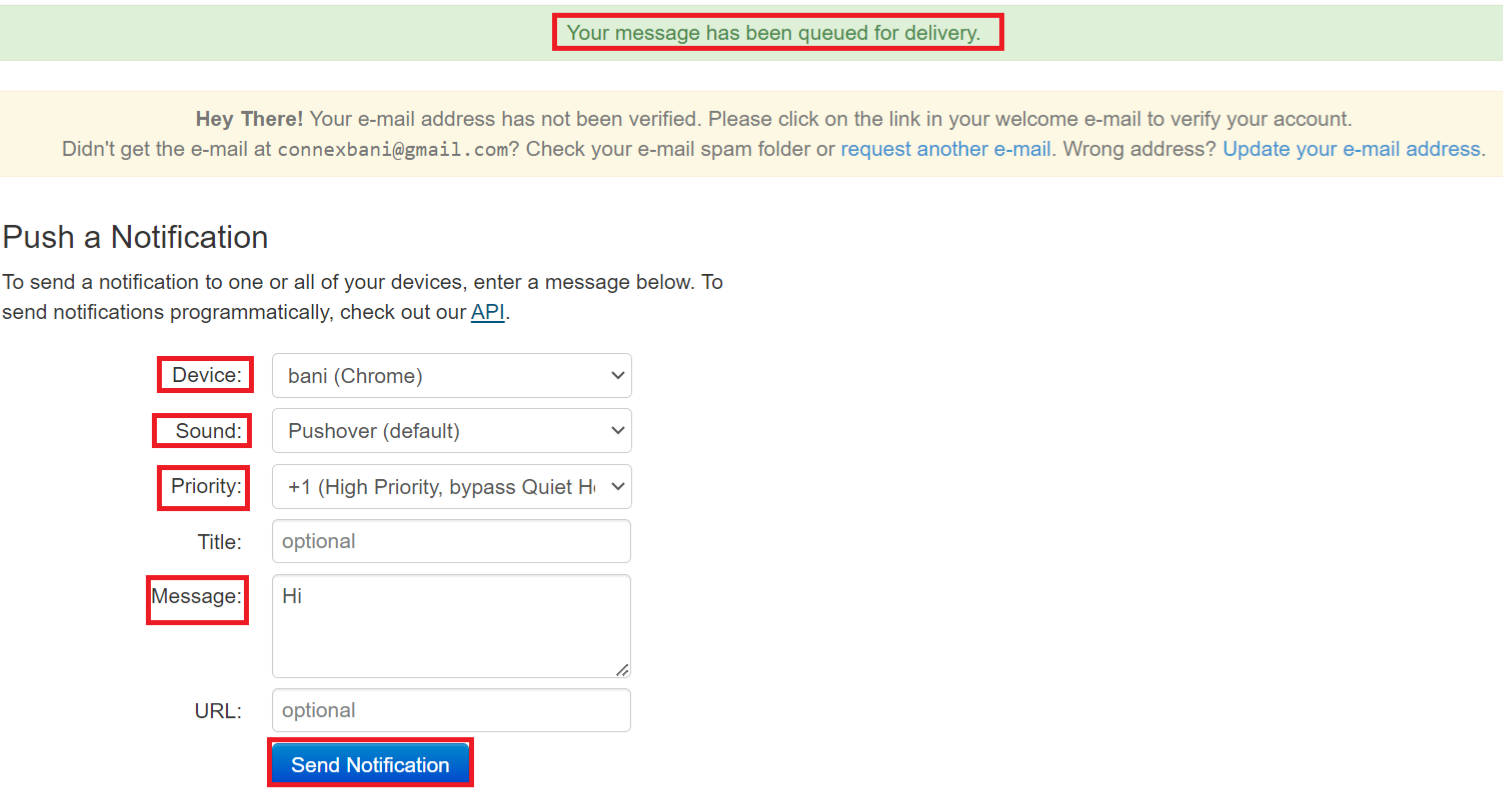
8.Received the message on https://client.pushover.net/ .

9.You now have Push message on the device.
10.Now, to integrate this with ConnexCS, copy the email under Your E-Mail Aliases which will be something like *@pomail.net**.
11.Login to your ConnexCS account.
12.Navigate to Management Customer Customer [Name]Alert blue + sign.
13.Enter the Title and paste the *@pomail.net (email) in the Email/Phone field. Fill out rest of the fields according to your alert requirement.
14.Click Save.
15.You will receive the pushover notification on your device.